Register a Card Reader for HP Secure Print
Print users can release documents from a secure printer by swiping a registered Card Reader.
Note: You'll need to first register your email address and set a PIN code before you can activate your Card Reader for Secure Print.
Register a Card Reader
- Walk up to any secure printer to register your Card Reader.
- Swipe your card. The screen displayed will vary based on how Secure Print is configured in your system. Enter your credentials to complete registration.
- OpenID Connect or SAML with Passcode enabled - Enter your system generated passcode.
- Email Auth (legacy) - Enter the email and PIN associated with your registered email address.
- Active Directory (legacy) - Enter your Active Directory Username and Password.
Note: Email Auth and Active Directory are legacy authentication providers, available only to organizations already configured with them before July 2026. For details, see Legacy Authentication.
Register a Card Reader (with a printed registration code)
Note: This workflow is available only for sites with SR25 Hardware attached to printers.
Note: The Register a Card Reader is only available when the External Hardware and Enable Card Reader Registration options are enabled in the Secure > Settings >
When you swipe your Card Reader at a secure printer (with SR25 hardware attached) for the first time, a document showing a one-time registration code is printed. Entering the code into your workstation will register your card.
- Walk up to any secure printer to activate your Card Reader. A document showing a one-time registration code is printed.
- Go to your workstation and right-click on the HP Secure Print desktop app icon and then select the Register a Proximity Card option.
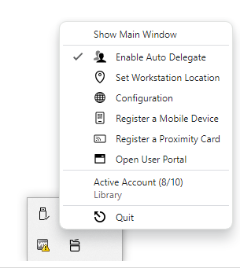
-
In the dialog box that opens, enter the registration code shown on the printout.
Your Card Reader is now registered. You can now release your documents to any secure printer in the organization.